
This guide takes you from sleep data already stored in Apple Health to a file you can open in a spreadsheet or keep beside your journal. Start with one known night, verify the output, then export a longer range.
The iPhone app includes 5 free export actions, followed by a single lifetime unlock. For the general spreadsheet workflow, use the Apple Health to CSV guide.
Before you start
- Check that the night you want is present in Apple Health. Health.md can read only the records your watch, sleep app, or another source has written there.
- Install Health.md on the iPhone with that data and authorize access to Sleep. Review app read permissions in Health if you previously skipped authorization. Apple explains how to manage app permissions.
- Choose a writable folder in Files, such as an on-device folder, iCloud Drive, or a folder inside your Obsidian vault. A provider-backed folder follows that provider's sync and privacy rules.
You do not need a Mac for this manual iPhone export. If setup is incomplete, follow your first iPhone export before continuing.
1. Select the sleep metrics you need
In Health.md, open Health Metrics and expand Sleep. Enable the measurements you need, such as Total Sleep, Bedtime, Wake Time, Deep Sleep, REM Sleep, and Core Sleep. Available output depends on your source records, permissions, OS, and installed app version; a metric selection cannot create a stage that your source did not record.
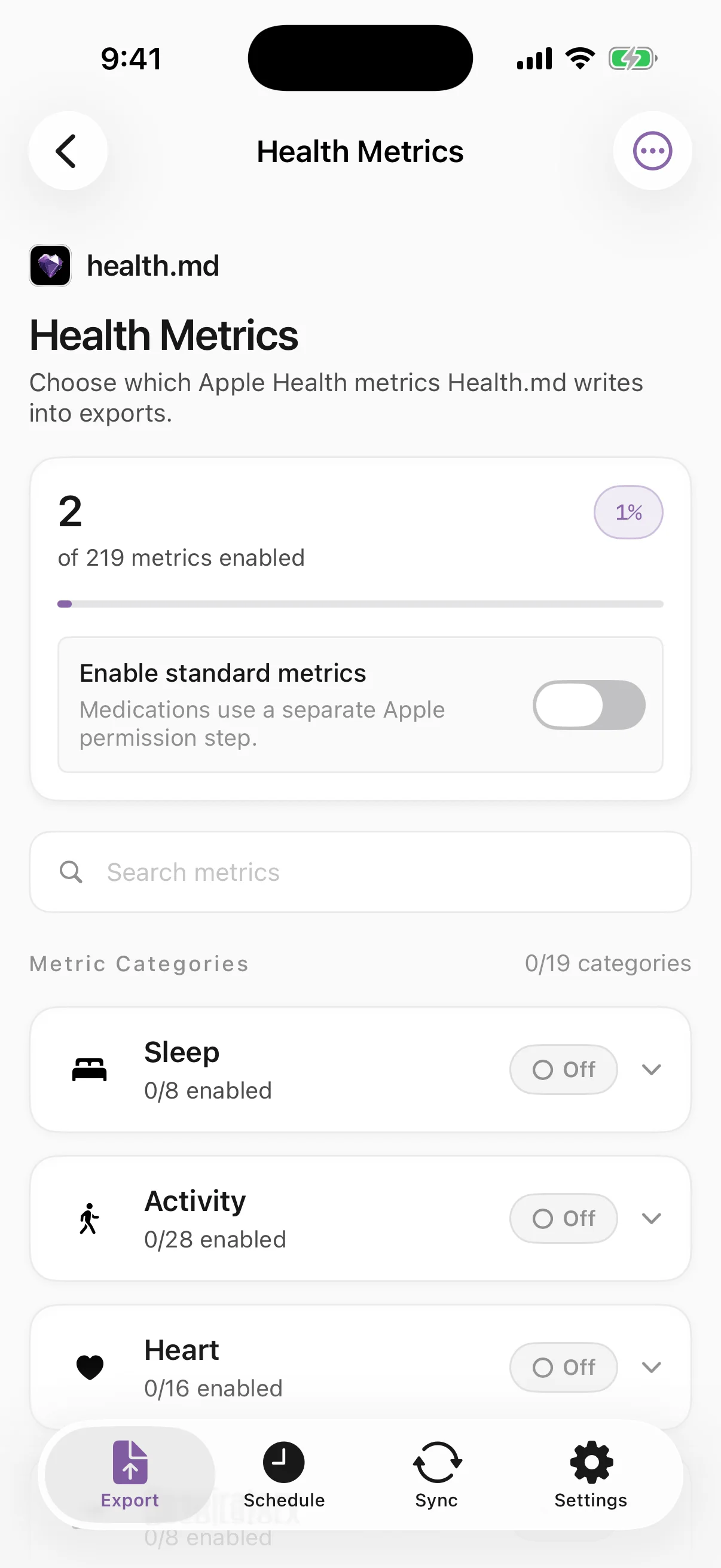
Use Summary for a compact daily view. If you need selected timestamped samples or intervals, review Detailed Time-Series in Data Detail and formatting. Lossless Health Records is a separate Apple-only archive option for supported canonical source records; it is not the same thing as a daily sleep total.
2. Choose the date the night started
Health.md assigns an overnight sleep session to its start date. For sleep from Monday at 11:45 PM to Tuesday at 7:30 AM, export Monday, usually Yesterday when checking on Tuesday morning.
| What you want on Tuesday morning | Date to export |
|---|---|
| Monday night's sleep | Monday / Yesterday |
| Tuesday's activity so far | Tuesday / Today |
| Both | Monday and Tuesday |
Start with one night you can identify in Apple Health. If the watch or source app synchronizes later, export the start day again. Keep the existing sleep-date explanation and sleep-date reference handy; this guide uses the same rule rather than introducing a new date convention.
3. Preview and export one day as CSV
- Enable CSV in your export formats. You can choose JSON or Markdown as well if you need those outputs.
- Select the one-day range and a folder available through Files. For a local folder workflow, use Local iPhone Folder.
- Tap Preview. Check the selected date, sleep metrics, units, and output format. Preview checks the health-data path before you test a file write.
- Tap Export Data, review the written, skipped, or failed files, then open the destination in Files.
- Open one generated CSV and compare its date and sleep values with the source. Daily exports produce separate files for the selected days, not one combined workbook.
If Preview works but saving fails, reselect the folder and check its file provider. The folder and vault guide explains that destination boundary.
4. Read the sleep CSV without mixing totals and stages
This is a synthetic excerpt from the production-generated Apple schema v8 CSV fixture. These are fictional values, not a person's sleep history or a complete export. The stage row is only one selected interval; it does not reconstruct the whole night.
Date,Category,Metric,Value,Unit,Timestamp
2026-03-15,Sleep,Total Duration,27900.0,seconds
2026-03-15,Sleep,Deep Sleep,5400.0,seconds
2026-03-15,Sleep,REM Sleep,8100.0,seconds
2026-03-15,Sleep,Core Sleep,14400.0,seconds
2026-03-15,Sleep,Sleep Stage,deep (3600s),seconds,2026-03-15T06:00:00Z
Download this synthetic sleep CSV excerpt, or inspect the complete generated CSV fixture. Both are safe examples for testing an importer without supplying your own records.
The example's Sleep,Total Duration value is 27,900 seconds, or 7.75 hours. Filter by Category = Sleep, Metric = Total Duration, and Unit = seconds before converting that numeric value to hours. Value is a mixed-type column: the stage row contains a stage label and duration, not a plain number.
| Output | What it represents | What to check |
|---|---|---|
| Daily summary rows | A daily projection such as Total Duration or Deep Sleep | Date, units, selected metrics, and missing values |
| Sleep Stage rows | Selected source intervals represented with a stage label, duration, and start Timestamp | The row's label and timestamp; do not add these durations to summary totals |
| Canonical source records | Supported HealthKit records retained by the Lossless Health Records archive option | Original start/end, source, capture status, and the canonical record contract |
The CSV header has six names. In this compatibility format, some summary rows contain five fields and omit Timestamp; timestamped rows contain all six. Preserve those row shapes with a normal CSV importer. Do not split a full export on commas: other rows can contain quoted values or JSON. See the CSV row contracts.
Apple Health distinguishes in-bed time from sleep stages, and in-bed samples can overlap detailed stage samples. Do not add In Bed Time, Awake Time, and every stage row together as if they were separate nights. Some source samples also mark sleep without a known stage. Apple's sleep category documentation describes these distinctions.
For import instructions, use Excel, Sheets, or Numbers. Uploading a CSV to a cloud spreadsheet or assistant sends that copy to the provider you choose; an export does not make those services local.
If sleep data is missing or looks different
Check these in order:
- Source records: confirm that Apple Health contains the night, then allow the watch or sleep app to synchronize.
- Date: inspect the sleep-start day, especially when looking for last night's sleep in today's file.
- Read permissions and metric selection: review Sleep access for Health.md and the enabled sleep metrics. An empty result alone does not identify whether records are absent, unavailable, or inaccessible.
- Detail and units: a daily summary is different from a list of stage intervals. CSV duration rows may use seconds while another display shows hours.
- Destination and result: distinguish a successful preview from a failed file write. Check the result and folder rather than assuming an idle button means the export succeeded.
A missing stage is not a measured zero. Do not infer sleep quality, a diagnosis, or complete coverage from a partial export. For more help, use export troubleshooting and the format reference.
Export more nights or add an Obsidian workflow
Once a manual night looks right, select a longer range. Confirm which dates reached your spreadsheet before combining files. Use the Obsidian walkthrough if you want health data beside daily notes instead.
For recurring exports, follow the scheduling guide. iOS controls background timing; the chosen time is a target, and source synchronization or protected-data access can delay a run. Verify a manual result before relying on a schedule.
On Android, use the Health Connect export guide. Health.md shares the sleep-start-date rule, but available records, stage identities, and export profiles differ. Apple Core sleep and Android Light sleep are not interchangeable labels to merge without checking their semantics.
Privacy and the native Apple export alternative
This folder workflow reads authorized Apple Health data on the iPhone and writes to the destination you select. It requires no Health.md account and creates no Health.md server copy by default. Your selected file or sync provider governs its copy.
The separate, optional single-owner Health.md Cloud pilot retains only API exports intentionally uploaded to it. There is no public signup and no automatic device sync; this folder workflow does not upload to it. See the privacy policy for retention, deletion, and storage limits.
If you want Apple's native archive instead, Health offers Export All Health Data in XML. It does not provide this selected-date CSV workflow; a compatible converter is needed to make a spreadsheet from that archive. See the Apple Health export guide to choose the appropriate route.
Common questions
Can I export sleep data without an Apple Watch?
Health.md reads sleep records already stored in Apple Health, including records supplied by other authorized sources. A watch is not required just to export existing records, but the export cannot create missing stages or measurements.
Why does last night's sleep appear in yesterday's export?
Health.md assigns the session to the day it started. On Tuesday morning, a Monday-night session belongs to Monday. This is the same rule used by the existing sleep-date guide and daily-note workflows.
Can I export REM, deep, and core sleep separately?
Choose the supported sleep metrics in Health.md. Stage-specific output depends on the records and detail available from your source; not every night has every stage. Do not fill an unavailable stage with zero.
Is the exported CSV a diagnosis or sleep-quality assessment?
No. It describes available source data and selected projections. Missingness, overlapping records, and device measurements limit what you can conclude; the export does not diagnose or recommend treatment.